Intelligent Bidding
Intelligent Bidding (also known as Dynamic Bidding) lets you define rule-based actions that
automatically adjust bids during a simulation. Rules are stored in .ibdx files and applied
by the engine at run time.
See the reference pages for full details: Overview · Actions · Conditions Library
- 1. Open
- 2. Configuration
- 3. Actions
- 4. Conditions Library
- 5. File Operations
- In Bid Manager, select the Intelligent Bidding tab.
- The tab opens on the Actions sub-tab by default.
- Two sub-tabs are available: Actions and Conditions Library.
The configuration row is visible when the Actions sub-tab is active. It contains four fields:
| Field | Description |
|---|---|
| SysWESM DB | Database used to resolve Object IDs |
| Time Periods | Time period set for the simulation |
| Condition library | The .ibdx condition library file |
| Scenario | The active scenario name |
Rule files use the .ibdx format.
- Click Open… in the Actions toolbar to open an existing
.ibdxfile (defaults to DirBid). - Click + New Action to start a new rule set.

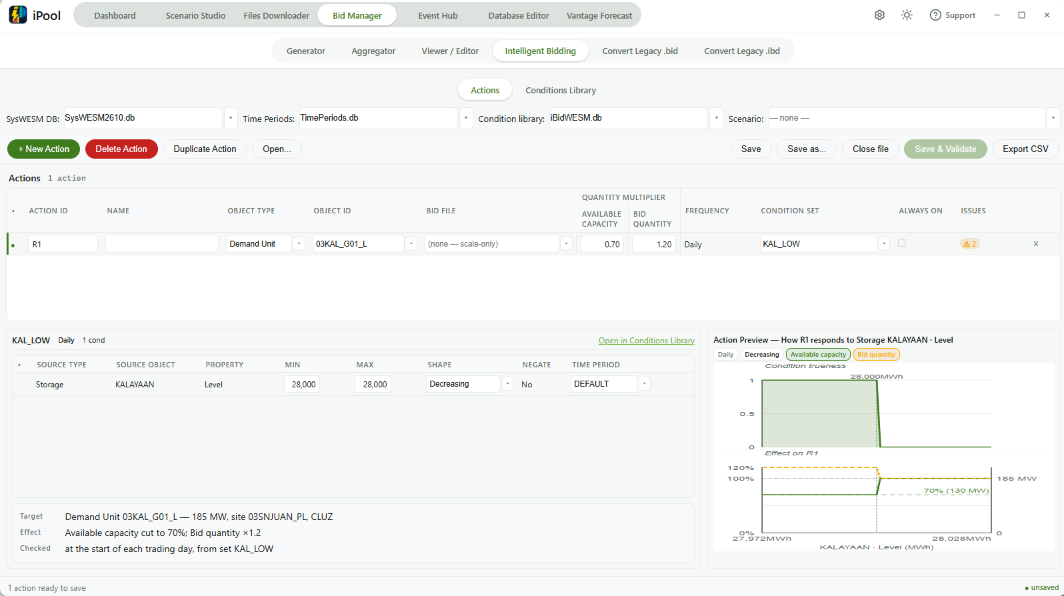
The Actions sub-tab is where you build and manage bidding rules.
Left toolbar:
| Button | Description |
|---|---|
| + New Action | Add a blank rule row |
| Delete Action | Remove the selected rule |
| Duplicate Action | Copy the selected rule |
| Open… | Open an existing .ibdx file |
Right toolbar:
| Button | Description |
|---|---|
| Save | Save the current rule file |
| Save as… | Save to a new file |
| Close file | Close without saving |
| Save & Validate | Check rules then save |
| Export CSV | Export rules as a CSV file |
Grid columns:
- Action ID
- Name
- Object Type
- Object ID
- Bid File
- Quantity Multiplier (Available Capacity + Bid Quantity)
- Frequency
- Condition Set
- ALWAYS ON
- Issues
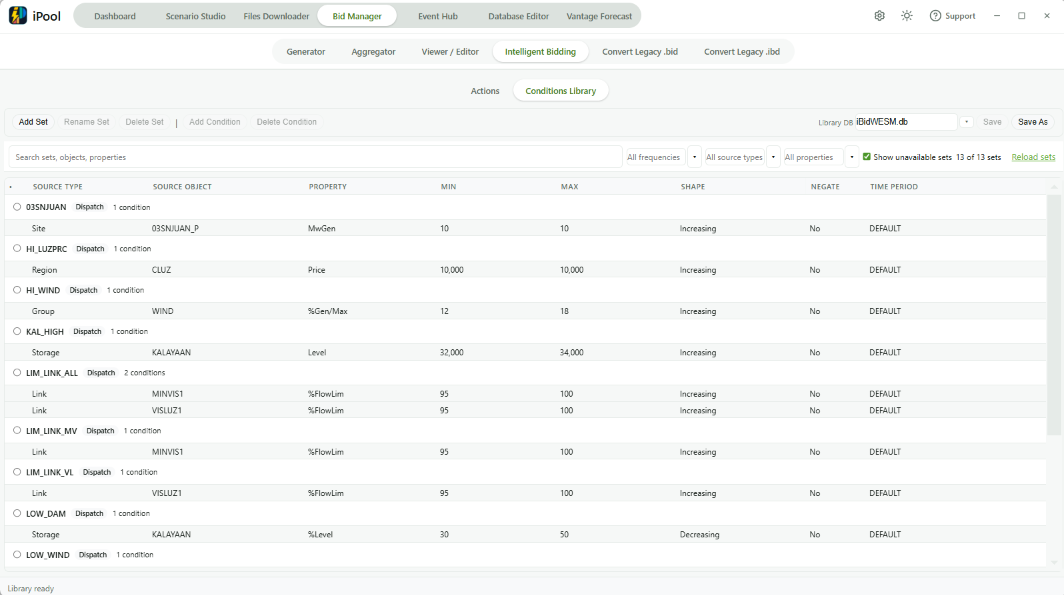
The Conditions Library sub-tab lets you manage reusable condition sets that can be referenced by Actions rules.
If you switch to this tab with unsaved library changes, a confirmation dialog appears:
- Title: "Unsaved Library Changes"
- Message: "You have unsaved library changes. What would you like to do?"
- Buttons: Save & Switch · Discard · Cancel
Save
- The default save filename is
ib_<scenarioName>.ibdx. - Use Save & Validate to check rules before saving.
- Use Export CSV to export rules as CSV (useful for keeping a backup copy or sharing rules).
Run
Pass the rule file to the engine using the -ib flag:
iPool.exe ... -ib ib_<scenario>.ibdx
The engine reads .ibdx and CSV rule files.
Legacy .ibd files are not accepted. Convert them first:
iPoolSuite.exe -ibd2ibdx ^
  -indir <dir> -outdir <dir> ^
  (-all | -file NAME ...)
See Convert Legacy Bids and Convert Legacy .ibd for conversion instructions.
Use -ib 0 to explicitly disable dynamic bidding for a run (overrides scenario rules).
Do not combine -ib 0 with a rule filename — this produces an argument error.